How to Get the Paris Aesthetic Photo Look Using an AI Photo Editor App
Learn how to transform your everyday selfies into stunning Parisian street style photos using simple AI prompts and templates.
 DevForge Studio
6 min read
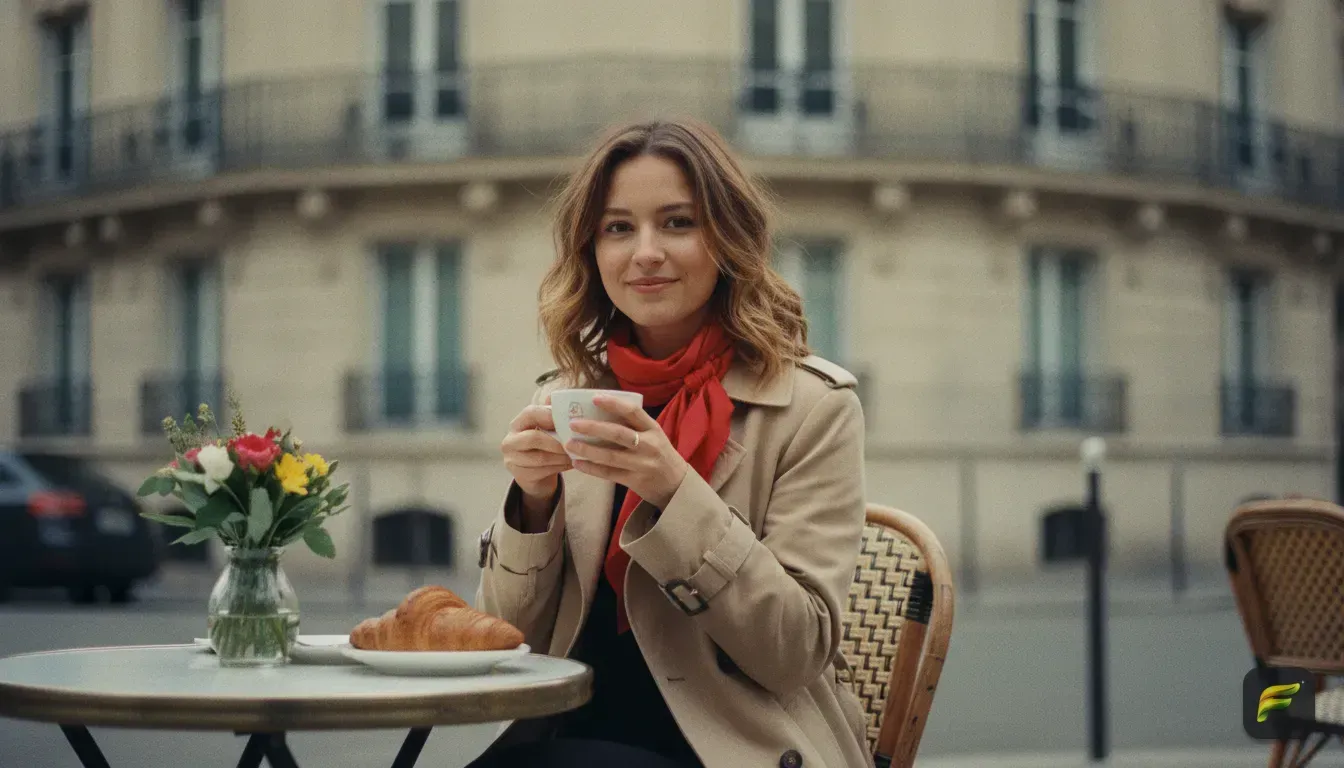
You've seen those dreamy vintage photos shot in a cosy French cafe. Getting the Paris aesthetic photo look used to mean booking a European flight and hiring a photographer. Now, you can pull off the exact same vibe from your bedroom using an AI photo editor app to match your selfie with the right templates.
We want to show you exactly how to pull this off for your next profile picture. You'll learn what makes a good starting photo and which outfits work best. We'll also share the exact text prompts you can copy and paste.
What Makes the Paris Aesthetic So Popular?
The Parisian photo trend is all about looking effortlessly chic. It rejects heavy filters for a natural, slightly nostalgic feel. When we analyse these feeds, a few common elements always stand out.
First, the lighting is incredibly soft. You rarely see harsh sunlight. These photos favour overcast skies or gentle late-afternoon gold.
The colour palette also leans towards neutral tones like beige, cream, navy, and soft reds. Finally, the photo texture looks like an old 35mm film camera. You'll notice subtle grain and slightly faded contrast.
Capturing this mood manually takes high-end camera gear and advanced editing software. An AI tool skips that hassle. It applies all these elements to a standard phone snap in seconds.
Step 1: Start With the Right Base Photo
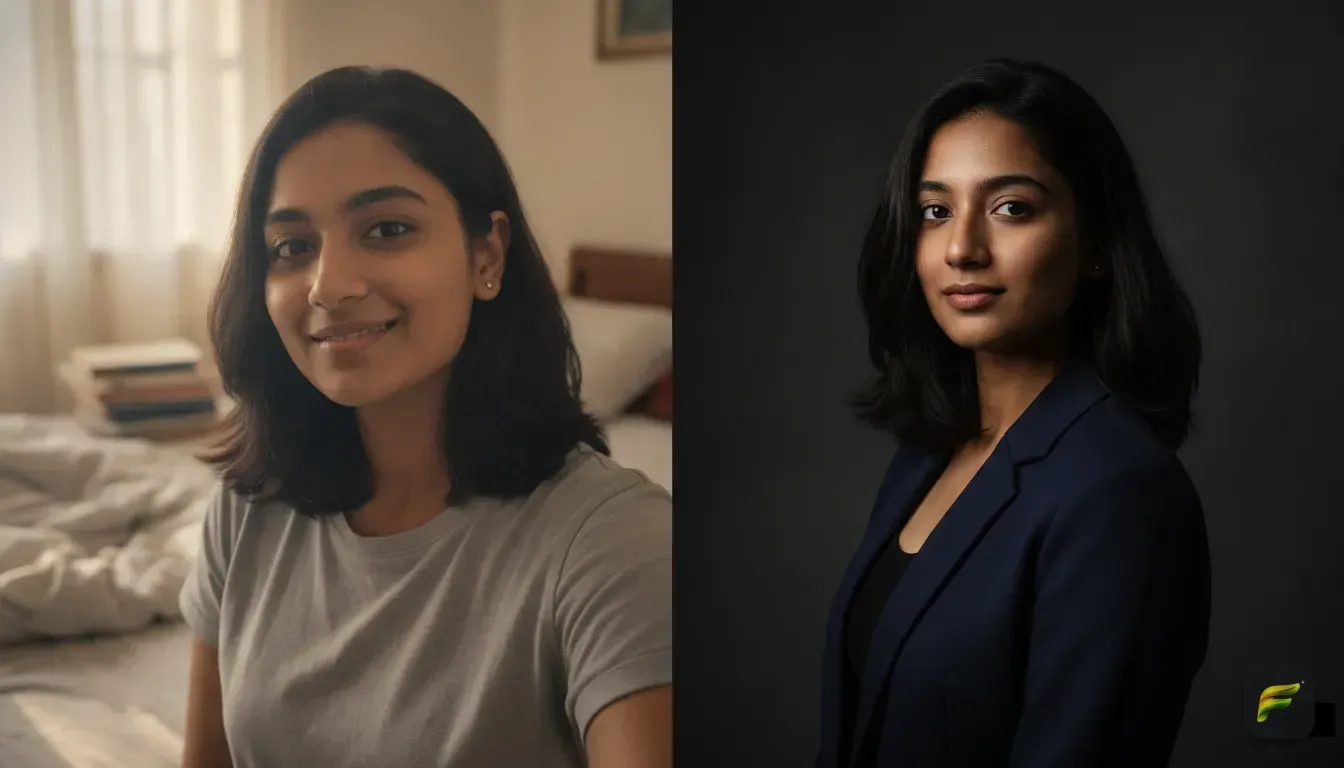
Your AI edit is only as good as the photo you upload. The AI needs a solid foundation to map your facial features, skin tone, and head shape. Upload a blurry image, and the final result will look bizarre.
Here is what you need for the perfect base photo:
- Clear visibility: Look directly at the camera or at a slight angle. Pin your hair back so it doesn't cover your eyes or cheeks.
- Even lighting: Stand facing a window. Natural daylight is always best, so avoid harsh overhead lighting that casts deep shadows under your eyes.
- A neutral expression: A relaxed, subtle smile fits the Parisian aesthetic. Big expressions can sometimes warp when the AI maps your face.
- A simple background: The AI changes your background anyway, but starting with a plain wall helps. It lets the app focus entirely on your face without getting confused by busy details.
Step 2: Choose Your AI Photo Editor App
You need an app that keeps your face looking like you while changing the clothes and environment. We recommend Fotorra AI for a quick and reliable option. It alters the scene without warping your actual facial features.
Fotorra AI features a curated 'Paris Afternoon' template. This instantly applies the cafe background, soft lighting, and vintage styling. Just upload your photo, tap the template, and wait a few seconds.
If you want more control over the final image, use the custom prompt feature to type exactly what you want. With Fotorra AI, your edited photos save directly to your phone. We always appreciate that uploads are never used to train external AI models.
Step 3: Use These Exact Prompts for the Parisian Look
The words you choose for custom prompts matter. You need to describe the lighting, setting, outfit, and camera style. Here are four specific prompts you can copy, paste, and tweak to get the perfect edit.
The Classic Street Cafe
This prompt gives you the iconic coffee shop look. It's perfect for a relaxed profile picture.
A young person sitting at a small round table outside a Parisian street cafe. Wearing a beige trench coat and a white shirt. Soft natural overcast lighting. Wrought iron chairs and a blurred cobblestone street in the background. Shot on 35mm film, vintage tones, soft focus.
The Haussmann Balcony
Use this text if you want a more romantic, architectural background.
A portrait of a person standing on a classic Parisian wrought-iron balcony. Wearing a navy blue blazer and a red silk neck scarf. Background features blurred creamy white Haussmann buildings with grey zinc roofs. Golden hour lighting, warm glow, cinematic photography.
The Evening Stroll
This creates a moody, atmospheric image. It works perfectly for an Instagram post.
A person walking down a narrow street in Montmartre, Paris, at dusk. Wearing a black turtleneck and a beret. Warm glowing street lamps in the background. Cinematic mood, slightly grainy film texture, moody lighting, professional portrait.
The Art Museum
This prompt delivers a highly refined, artistic vibe.
A person standing inside a classic French art museum with tall windows and marble floors. Wearing an elegant minimalist dress. Soft diffused daylight coming from large windows. Classic, elegant, high fashion photography, neutral colour palette.
Step 4: Nailing the Hair and Outfit Details
The clothing in your AI edit dictates the entire mood. The French aesthetic relies heavily on classic wardrobe staples. We suggest specifying items like a Breton striped top, a tailored blazer, or a simple silk camisole in your prompts.
You can also experiment with your appearance. Try typing "messy effortless wavy hair" or "a chic short bob" into your prompt. The app replaces your hair and clothes but keeps your face exactly the same.
AI acts as a great test run for new styles. In fact, this is a brilliant way to plan your vacation wardrobe if you actually have a Europe trip coming up.
Step 5: Adding the Vintage Film Finish
A crisp digital image rarely feels like Paris. The true aesthetic requires a softer, older finish. You must tell the AI to degrade the image quality just a bit.
Always add camera keywords at the end of your prompt. Terms like 'subtle film grain', 'Fujifilm tones', or 'vintage 1990s photography' work beautifully. This tells the system to mute the colours and add texture.
Want to take a deeper look at making everyday photos look like movies? Read our guide on how to get a cinematic photo edit from a regular selfie.
Common Mistakes to Avoid
Even with great tools, it's easy to make errors that ruin the edit. Keep these pitfalls in mind.
- Overcomplicating the prompt: A massive paragraph with too many details just confuses the AI. Keep your sentences short. Focus only on setting, outfit, lighting, and camera style.
- Using heavy filters: Do not upload a base photo that already has an Instagram face filter applied. The AI will struggle to map your real features. Always use a raw, unfiltered photo.
- Ignoring original lighting: If your base photo has a bright red neon light shining on your face, the AI will keep it. That red glow looks terrible in a daytime cafe setting. Always shoot your base photo in neutral, natural light.
Your Next Move
You now know exactly how to get the Paris aesthetic photo look using an AI photo editor app. The process is remarkably simple. Don't spend hours tweaking colours manually when you can generate the vintage style in seconds.
Grab your phone and take a quick selfie facing a window. Try running it through the app using the cafe prompt above. Play around with different outfits and lighting keywords until you find a style that matches your personal aesthetic.
Frequently asked questions
Do I need a professional camera for the base photo?
No, a standard smartphone selfie works perfectly. As long as your face is well-lit by natural light and clearly visible without obstructions, the AI will produce a high-quality edit.
Can an AI app change my outfit but keep my face the same?
Yes, modern AI photo editors are specifically designed to swap your clothing, hair, and background while keeping your facial features completely intact.
What makes a photo look Parisian?
The aesthetic usually involves soft natural lighting, a slightly muted or vintage colour palette, classic clothing like trench coats, and background elements like cafe chairs or wrought iron balconies.
How do I get the vintage film grain look using AI?
You can include specific phrases like '35mm film', 'subtle grain', and 'vintage tones' in your text prompt. This tells the AI to add classic texture and slightly fade the contrast of the final image.

Try it yourself
Fotorra AI
Transform photos instantly with AI.