
5 AI Photo Editing Prompts That Keep Your Face Natural
Tired of AI editors turning you into a plastic-looking stranger? Here is exactly how to write prompts that change your outfit and background while keeping your real face intact.
 DevForge Studio
7 min read
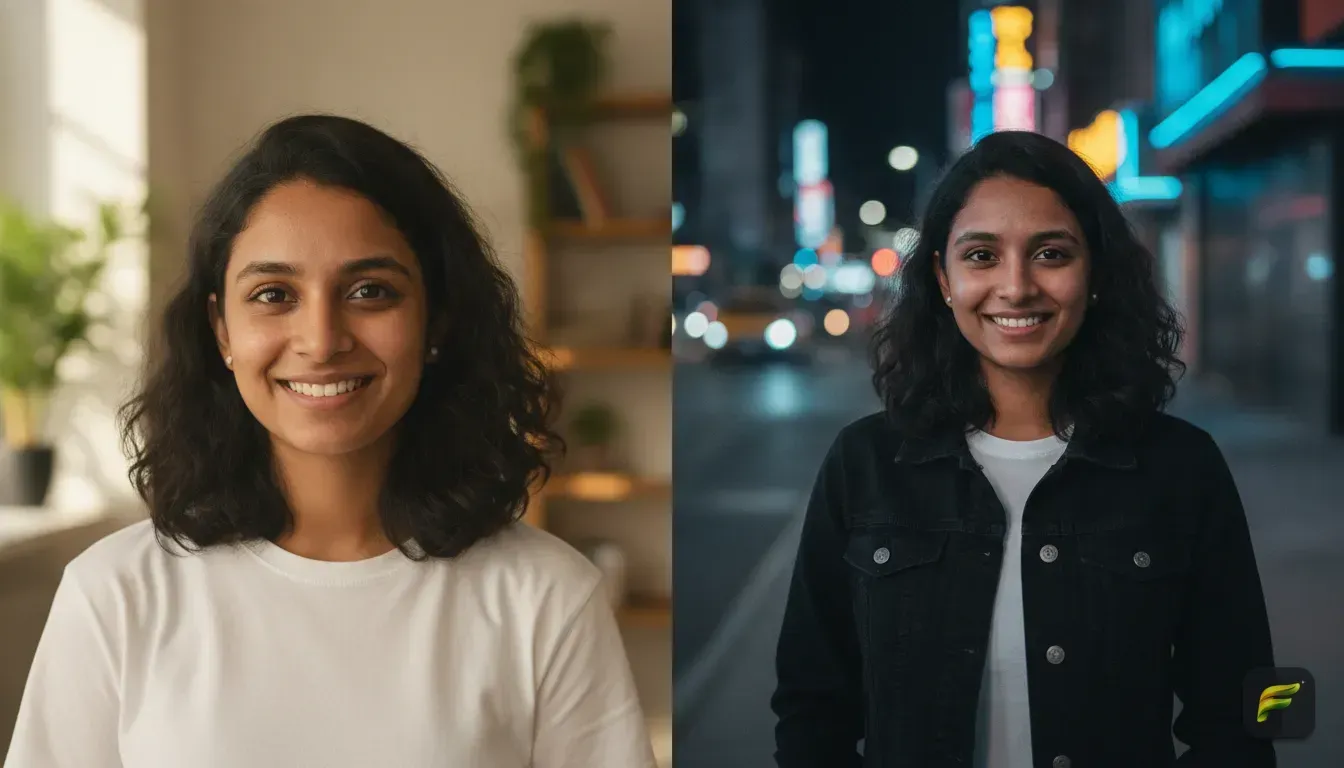
Have you ever uploaded a great selfie into an AI photo editor, asked for a simple background change, and got back a picture of a total stranger? You want to see yourself in a new outfit, but the AI gives you a plastic face, different eyes, and a weird jawline. It's incredibly frustrating.
If you want AI photo editing prompts that keep your face natural, you have to tell the tool exactly what to change and what to leave alone. Most people make the mistake of over-describing their image or triggering heavy beauty filters. We'll show you how to write prompts that yield cinematic edits while keeping your actual identity intact.
Why AI keeps changing your face
Most AI image models are trained on millions of heavily filtered photographs. When you give vague instructions like "make me look cool in a leather jacket", the AI doesn't just change your clothes. It applies its own standard of a "cool" face and overwrites your features with an airbrushed template.
The software also gets confused if it can't clearly see your face in the original photo. If your starting image is blurry, covered by heavy shadows, or shot from a weird angle, the AI tries to fill in the blanks. It guesses what your nose or eyes should look like, and it usually guesses wrong.
Start with the right input photo
Your prompt only does half the work. If you feed the AI a bad photo, even the best text won't save it. Before you start typing, make sure your starting image ticks these boxes:
- Clear, even lighting: Stand in front of a window with natural daylight facing you. Avoid harsh shadows across your nose or eyes.
- Look straight at the camera: Profile shots or extreme angles force the AI to guess what the rest of your face looks like.
- No heavy filters: Don't use a Snapchat or Instagram filter on your base photo. Give the AI your real skin texture so it has a realistic baseline.
- Keep hair out of your eyes: If a thick section of hair crosses your cheek or eye, the AI might blend it right into your skin.
The formula for a face-preserving prompt
Writing a good prompt is like instructing an assistant who takes everything literally. You need a strict formula. To keep your face natural, focus entirely on the environment, the clothing, and the camera style.
Here's the formula we use: [Subject Context] + [Outfit] + [Setting/Background] + [Lighting/Photography Style].
Notice what's missing? There are no words describing physical beauty, skin clarity, or facial features. You're forcing the AI to spend its processing power on the jacket you're wearing, rather than redrawing your cheekbones.
5 AI photo editing prompts that keep your face natural
Here are five copy-paste prompts you can try right now. We've included explanations for why these specific words keep the edit looking realistic instead of like a cartoon.
1. The Cinematic Night Walk
The prompt: Subject wearing a black denim jacket over a white t-shirt, standing on a city street at night, blurred background illuminated by soft blue and pink neon signs, cinematic depth of field, 35mm photography, subtle film grain.
Why it works: Asking for "cinematic depth of field" tells the AI to blur the background, keeping the sharp focus naturally on your face. The phrase "subtle film grain" is incredibly important here. It stops the AI from smoothing out your skin and giving you a fake, plastic look.
2. The Professional Studio Headshot
The prompt: Professional portrait of subject wearing a crisp navy blue blazer and white shirt, solid warm grey background, soft diffuse studio lighting, sharp focus on clothing texture, raw photography.
Why it works: When you need a professional photo, you want zero distractions. Specifying "soft diffuse studio lighting" prevents harsh AI-generated shadows that alter your face shape. The term "raw photography" signals that you want an unedited, natural look.
3. The Vintage Film Look
The prompt: Subject wearing a casual oversized graphic sweater, sitting in a cozy retro diner, 1990s disposable camera aesthetic, slight light leak, natural flash lighting, authentic snapshot.
Why it works: The disposable camera aesthetic naturally accepts imperfections. Because the AI is mimicking a cheap 90s camera, it won't apply heavy beauty filters or perfect symmetry to your face. It keeps the vibe casual and very natural.
4. The Golden Hour Cafe Vibe
The prompt: Subject wearing a beige knit cardigan, sitting at an outdoor Parisian cafe table with a coffee cup, golden hour sunlight hitting from the side, soft warm tones, photorealistic lifestyle portrait.
Why it works: Golden hour lighting is universally flattering but often causes AI to over-saturate colors. Adding "photorealistic lifestyle portrait" grounds the image. This keeps it looking like a photo taken by a friend on an iPhone rather than a digital painting.
5. High-Fashion Editorial
The prompt: Subject wearing an elegant emerald green evening gown, standing in a grand ballroom with crystal chandeliers in the background, warm ambient light, high-end editorial fashion photography, natural skin texture.
Why it works: Fashion photography prompts sometimes trigger the AI to give you a very dramatic face. Adding "natural skin texture" at the end reminds the tool not to airbrush away your real features. It upgrades your outfit without painting over your identity.
Words you must remove from your prompts
Sometimes, getting a natural result is about what you leave out. If you're used to generating AI art, you might habitually use dramatic keywords. When editing your own photos, these words will ruin your face.
- Avoid beauty keywords: Delete words like gorgeous, flawless skin, symmetrical face, or stunning. These are massive triggers for the AI to wipe away your real face and apply an Instagram-style filter.
- Avoid describing your features: Don't type "brown eyes and a sharp nose". The AI will just try to draw brand new brown eyes directly over your existing ones. Let your original photo do the talking.
- Avoid ultra-HD terms: Phrases like 8k resolution, hyper-detailed, masterpiece, or Unreal Engine make your photo look like a video game character. Stick to photography terms like 35mm film or polaroid.
Changing hair and clothes without stress
Changing your outfit is one thing, but changing your hair often confuses these tools even more. To see how you look with a bob or a different hair color, you have to keep the prompt incredibly simple. Just add "with shoulder-length wavy brown hair" right after your subject context.
If you want to test out a real haircut before you commit, check out our guide on how to try a new hairstyle on your photo with AI before the salon. It requires a slightly different approach. This ensures the hair blends properly with your real forehead and cheekbones.
The same rule applies for specific ethnic wear or complex outfits. If you're testing out items before you purchase them, read our full tutorial on how to try on clothes virtually before buying online.
How Fotorra AI solves the face problem
Even with perfect prompts, standard AI image generators will sometimes mess up your face. They're built to generate entirely new images from scratch, not carefully edit existing ones. That's exactly why we built Fotorra AI.
We designed Fotorra AI for creators who want eye-catching edits without the plastic look. The app has a dedicated "Keeps Your Face" feature built into its core. You don't have to write complex negative prompts or worry about the AI changing your jawline.
You just use the Custom Prompts feature, type "wearing a red dress in a studio", and Fotorra does the heavy lifting. It isolates your facial features and builds the new outfit and background around you. Your edited photos are processed right on your device, so your uploads stay private.
If you don't want to write prompts at all, Fotorra AI has curated one-tap templates. Just pick a style like Cinematic Studio, Girl's Closet, or Vintage Film. You'll get a perfect result instantly.
Your next step
The best way to figure out what works for your face is to test it out. Go to your phone gallery right now and find a clear, well-lit photo looking straight at the camera. Pick one of our five prompts, copy it, and run it through your AI editor.
Keep your words focused entirely on the clothes and the background. Then, just let your natural face shine through.
Frequently asked questions
Why does AI always change my face when editing photos?
AI models are trained to enhance images based on generalized data. If your prompt is too vague or includes beauty keywords, the AI applies its own standard of perfection and overwrites your actual facial features.
How do I stop AI from smoothing my skin too much?
Stop using words like 4K, 8K, or masterpiece in your prompts. Instead, use photography terms like 35mm film, raw photography, or subtle film grain to force the AI to retain natural skin texture.
Can I change my outfit with AI without changing my face?
Yes. You can use specific clothing prompts that only describe the outfit, or use an app like Fotorra AI which has a built-in feature designed to keep your facial identity completely intact while altering the clothing and background.

Try it yourself
Fotorra AI
Transform photos instantly with AI.


