
Try a New Hairstyle on Your Photo With AI Before the Salon
Find out how to test out a fresh haircut, bangs, or a new hair colour using AI on your own selfie before you commit to the big chop.
 DevForge Studio
6 min read
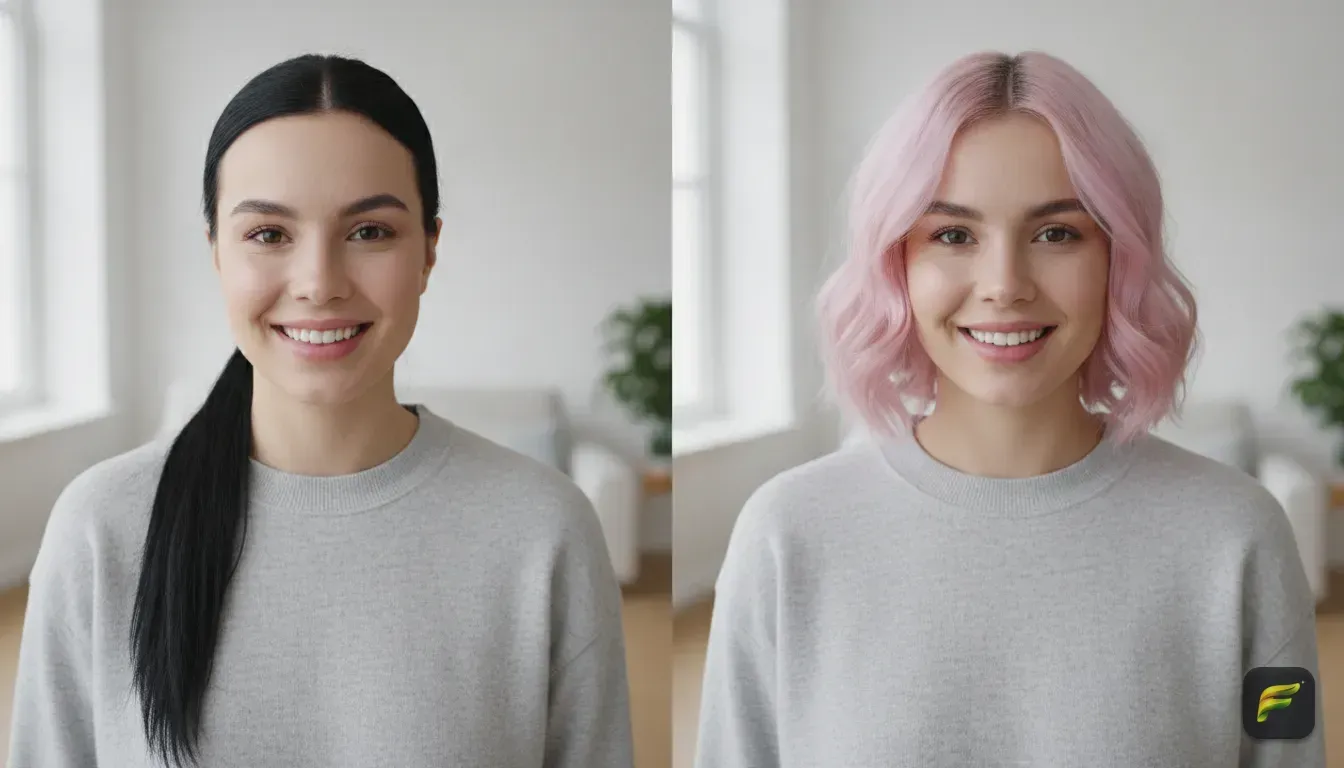
We know the feeling. You're staring at the mirror, awkwardly holding up sections of hair to fake a short bob or squishing pieces across your forehead to mimic curtain bangs. A bad haircut takes agonizing months to grow out, and fixing a dye job costs a fortune, so you want to be completely sure before sitting in the stylist's chair.
You don't have to guess anymore. If you want to know how to try a new hairstyle on your photo with AI before the salon, we have the exact steps. By uploading a simple selfie, you just type in the haircut you want and get a realistic preview in seconds.
We'll show you how to prep your base photo and what words actually work. We will also explain how to make sure the final image helps your real stylist.
Start With the Perfect Base Photo
AI tools are smart, but they need a clean slate. Upload a blurry photo from a dark room, and the AI struggles to find where your face ends and your hair begins. You have to follow a few simple rules for a realistic preview.
Find Even Lighting
Stand directly in front of a window during the day. Natural light hits your entire face evenly. Don't stand under harsh overhead bulbs. They create deep shadows under your chin, which ruins the preview when testing a short bob.
Prepare Your Current Hair
How you wear your hair right now dictates how well the AI can edit it. Here is a quick guide.
- If you're going shorter: Tie your hair back into a tight ponytail or bun. If long hair covers your shoulders, the AI has to guess what your neck looks like. Tying it back gives the tool a blank canvas.
- If you're adding bangs: Make sure your forehead is completely visible. Pin back any layers that currently fall across your face.
- If you're only changing colour: Leave your hair down. Spread it over your shoulders so the AI can grab your natural shape and just adjust the tone.
Keep Your Face Straight
Look directly into the camera lens. Angled selfies hide how a haircut actually frames your unique face shape. Keep your expression neutral or offer a soft smile. Ditch the heavy filters, because you need the most natural version of yourself here.
Step-by-Step: How to Try a New Hairstyle on Your Photo With AI
Got your well-lit selfie? It's time to experiment. You need an AI photo editor app that lets you use custom prompts while keeping your actual face intact.
We built our app, Fotorra AI, specifically for this. You just type what you want, and the app keeps your face exactly the same while swapping out your hair, outfit, or background. Everything generates right on your phone, keeping your uploads totally private.
Here is how to run your first virtual hair test.
- Open the app: Download Fotorra AI and sign in with Google.
- Upload your selfie: Pick that clear, front-facing window photo you just took.
- Select Custom Prompt: Skip the ready-made templates. The custom option gives you total control over the hair details.
- Type your prompt: Describe the exact haircut, texture, and colour you want. We provide some proven examples below.
- Generate and save: Tap the button. Wait a few seconds, then save the result to your camera roll.
5 AI Prompts to Copy for Your Virtual Hair Makeover
The secret to getting a great AI portrait generator from photo result is being specific. Typing "short hair" might spit out a pixie cut when you actually wanted a lob. Always describe the length, style, texture, and colour.
Copy and paste these exact prompts. Just tweak the colours to match your preference.
1. The Classic French Bob
Prompt: "Short chin length french bob with blunt bangs, straight glossy black hair, tucked behind one ear."
This works brilliantly for seeing if your jawline handles a sharp cut. Specifying "tucked behind one ear" adds a realistic, casual detail. It stops the hair from looking like a helmet.
2. Trendy Curtain Bangs
Prompt: "Long wavy hair with thick face framing curtain bangs, warm brown balayage colour, voluminous blowout style."
Curtain bangs look great, but they demand daily styling. This prompt shows them fully blown out. It helps you decide if you really want that morning maintenance.
3. The Edgy Pixie Cut
Prompt: "Very short textured pixie cut, messy spikes on top, cool toned platinum blonde hair."
A pixie cut is an intimidating salon request. This prompt lets you test the dramatic chop and a bold colour all at once.
4. 90s Supermodel Layers
Prompt: "Voluminous shoulder length hair with heavy layers, bouncy 90s blowout, copper red colour."
This big, bouncy style makes a fantastic trending AI photo edit. Copper red is highly requested at salons right now. Try it digitally before committing to the upkeep.
5. Sleek Formal Updo
Prompt: "Sleek low bun with a neat middle part, shiny natural hair, smooth and frizz free."
You don't always have to test a fresh cut. Sometimes you just need to preview an updo for a wedding or graduation before booking a stylist.
Testing Hair Colours Without the Bleach Damage
Changing dark hair to blonde requires multiple bleach sessions and hundreds of dollars. The damage is real. AI lets you safely check if a shade washes out your skin tone or makes your eyes pop.
Be extremely specific about tone. Don't just say "blonde." Use "ash blonde" or "honey blonde." If you want red, specify "dark auburn" or "strawberry blonde." Pinning down those warm and cool tones makes talking to your colourist much easier.
Matching Your New Hair With a Full Look
A major haircut usually shifts your entire aesthetic. A sharp bob pairs nicely with tailored blazers, while beachy waves practically demand summer dresses. You can use Fotorra AI to change your outfit in photo AI at the exact same time as your hair.
Just tag your outfit choice onto the end of the prompt. For example: "Short chin length bob, wavy brown hair, wearing a black leather biker jacket."
Testing an updo for a formal event? You can easily test ethnic wear too. Check out our guide on 5 Saree Draping Styles You Can Try Virtually With AI to see how your hair pairs with traditional outfits. If you're just updating your daily wardrobe, read our advice on How to Try On Clothes Virtually Before Buying Online.
Mistakes to Avoid When Generating AI Hairstyles
Even great prompts yield weird results if you aren't careful. Watch out for these three common mistakes.
- Using a busy background: Trees or posters behind your head confuse the AI. It might accidentally blend your new hair into the wallpaper. Stand against a plain wall.
- Forgetting hair texture: If you have tight curls but generate perfectly straight hair, remember you'll be flat-ironing it daily. Include your natural texture in the prompt, like "short curly bob." This gives you a realistic, low-maintenance preview.
- Conflicting descriptions: Don't use contradictory words. Asking for "long hair, short pixie cut" just confuses the tool. Keep your instructions clear.
Taking Your AI Photo to the Salon Stylist
Once you generate an image you love, save it. This becomes the ultimate reference photo for your stylist.
Keep your expectations grounded, though. AI creates a flawless digital concept. Show the photo to your stylist and ask if the cut actually works with your natural hair density. They might suggest leaving it an inch longer so it sits nicely, or tweaking the dye to match your skin's undertones.
Your Next Step
Stop wondering what you'd look like with a fringe. Find a window with good natural light, pull your hair back, and snap a selfie. Paste a few of our prompts into the AI editor, and find out if you're actually ready to book that appointment.
Frequently asked questions
Can I use AI to see what I look like with bangs?
Yes, you can upload a selfie with your hair pulled back and your forehead visible. Type a prompt like 'long wavy hair with thick front bangs' into the AI app to see exactly how a fringe suits your face shape.
Will an AI photo editor change my face?
Not if you use an app designed to keep your facial features intact. Apps like Fotorra AI lock in your facial structure and skin tone, so only your hair, outfit, or background changes.
How do I describe hair colour to an AI?
Be as specific as possible with tones. Instead of just typing 'red hair', use descriptive phrases like 'warm copper red', 'dark auburn', or 'vibrant cherry red' to get the exact shade you want to test.
Can I show an AI generated photo to my hairdresser?
Absolutely. Hairdressers appreciate visual references because it helps them understand the exact length, style, and colour vibe you want. Just be open to their professional advice on how the cut will work with your natural hair texture.
Try it yourself
Fotorra AI
Transform photos instantly with AI.


